Integrating the Spray Art Photoshop Action into Your Creative Workflow
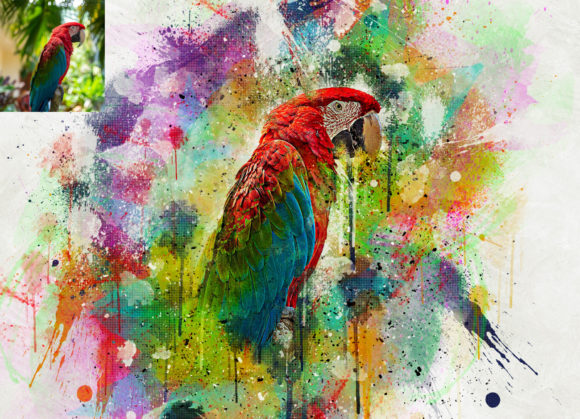
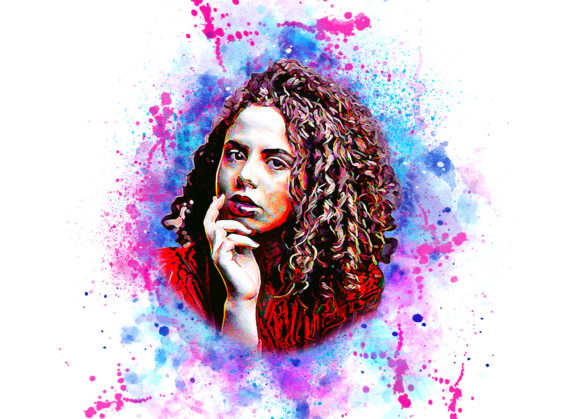
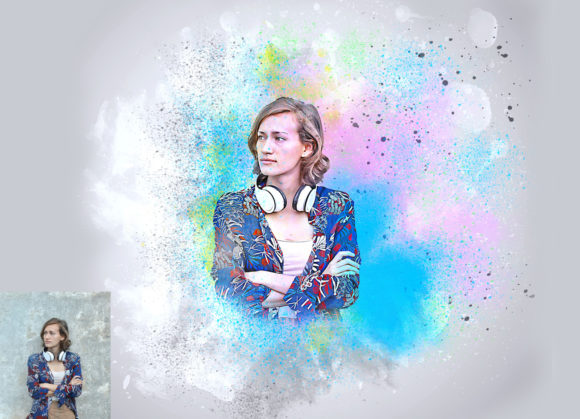
In the fast-paced world of digital design, efficiency and distinct visual style are paramount. Whether you are a freelance graphic designer, a marketing professional creating social media assets, or a hobbyist looking to elevate personal photography, the ability to rapidly apply high-quality artistic effects can significantly streamline your production pipeline. The Spray Art Photoshop Action serves as a specialized tool designed to bridge the gap between standard photography and urban-style street art aesthetics. By automating complex layering and blending processes, this action allows creators to transform ordinary images into extraordinary spray-painted compositions with minimal manual effort.
Understanding how to effectively integrate this tool into your broader creative process requires more than just installing a file. It involves recognizing where it fits within your project timeline, ensuring technical compatibility, and preparing your source materials for optimal results. This guide explores the practical implementation of the Spray Art Photoshop Action, focusing on workflow integration, preparation techniques, and customization strategies that ensure consistent, high-quality outcomes.
Strategic Placement in the Design Process
The decision to use a stylized effect like spray art should not be an afterthought but a deliberate choice made during the planning phase of a project. This action is particularly effective when used in campaigns that require a gritty, urban, or youthful vibe. For marketers and entrepreneurs, this might mean creating eye-catching headers for blog posts, dynamic backgrounds for event posters, or unique product mockups that stand out in a saturated digital marketplace.
When incorporating the Spray Art Photoshop Action into your workflow, consider its role relative to other editing tasks. It is generally best applied after basic color correction and exposure adjustments but before final sharpening or output resizing. This sequence ensures that the underlying image data is clean, allowing the action’s algorithms to interpret tones and contrasts accurately. If you apply heavy filters or drastic color shifts after running the action, you may disrupt the carefully balanced layers created by the script, leading to inconsistent visual results.
Furthermore, this tool interacts seamlessly with other design elements. Because the action generates organized layers, you can easily composite text, vector graphics, or additional photographic elements on top of the spray art effect. This non-destructive nature is crucial for professionals who need to iterate on designs based on client feedback. You can toggle the visibility of specific color layers or adjust opacity without having to re-run the entire process, saving valuable time during the revision stage.
Technical Compatibility and System Requirements
Before integrating any automated tool into your professional toolkit, verifying software compatibility is essential to avoid workflow interruptions. The Spray Art Photoshop Action has been rigorously tested to ensure stability across a wide range of Adobe Photoshop versions. It is fully compatible with English versions of Photoshop CS5.5, CS6, CC2014, CC2015, CC2015.5, CC2016, CC2017, CC2018, CC2019, and CC2020.
It is important to note that the action is optimized for English language interfaces. Users operating Photoshop in other languages may encounter errors if the action relies on specific layer names or menu commands that differ in translation. Ensuring your software environment matches these requirements prevents technical glitches and ensures a smooth installation process. Additionally, while the action is lightweight, working with high-resolution files demands adequate system resources. Maintaining an organized workspace and closing unnecessary applications can help maintain performance during the processing phase.
Preparation: The Key to High-Quality Results
The quality of the final output is directly influenced by the preparation of the source image. Automated actions are powerful, but they are not magic; they rely on clear input data to generate precise effects. To achieve the best results with the Spray Art Photoshop Action, specific preparatory steps are recommended.
First, canvas extension is critical. Spray art inherently features overspray and drips that extend beyond the main subject. If your image is cropped tightly to the edges, the effect may look unnatural or cut off. You should select your background image and use the crop tool to extend the canvas on two sides or all sides. This provides the necessary negative space for the spray texture to breathe and blend naturally into the background.
Second, resolution and dimensions play a significant role in the clarity of the effect. It is advisable to resize your images to approximately 3000x3000 pixels with a DPI of 72. This resolution strikes a balance between detail and file size, ensuring that the brush strokes and texture details remain sharp without overwhelming your system’s memory. Working at this standard size also ensures consistency across different projects, making it easier to batch process or compare results.
Execution and Customization Workflow
Once your image is prepared, the execution process is straightforward but requires attention to detail regarding layer management. The action relies on a specific layer structure to function correctly. After opening your photo, create a new layer and rename it “paint” in lowercase letters. This naming convention is crucial because the action script likely searches for this specific layer name to apply the brush strokes.
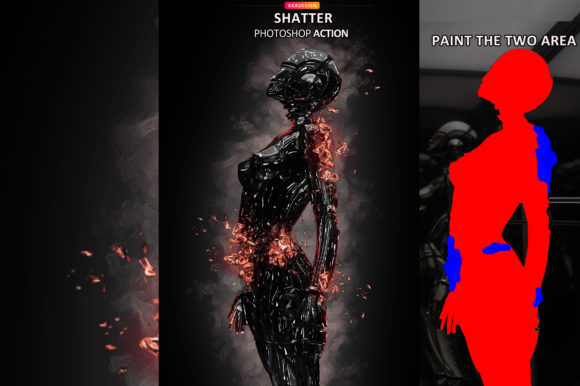
On this “paint” layer, use a standard brush to paint over the areas of the image where you want the spray effect to be most prominent. This step allows you to control the density and placement of the effect manually. You do not need to be precise; broad strokes indicating the general shape and shadow areas are sufficient. Once you have painted the guide layer, hide its visibility by clicking the eye icon, but keep the layer selected. Then, simply click the play button on the action panel.
One of the standout features of this pack is its customizability. Upon completion, you will have access to 20 different color options. These presets allow you to match the spray art style to your brand colors or the mood of the photograph. Changing the color scheme is effortless, enabling rapid experimentation. You can cycle through these options to see which palette complements the underlying image best, facilitating a quick decision-making process during tight deadlines.
Long-Term Usability and Asset Management
For professionals and frequent users, the long-term value of a tool lies in its ease of use and organizational structure. The Spray Art Photoshop Action package includes not only the ATN file but also custom brushes, a PDF help file, and a user guide. Keeping these assets organized in a dedicated folder on your drive ensures that you can quickly reinstall or reference instructions if needed.
The non-destructive nature of the action supports sustainable workflow practices. Because the effect is built using adjustable layers rather than flattened pixels, you can return to old projects months later and tweak the colors or intensity without starting from scratch. This flexibility is invaluable for agencies managing multiple client accounts or educators teaching digital art techniques, as it allows for iterative learning and adaptation.
In conclusion, the Spray Art Photoshop Action is more than just a filter; it is a workflow enhancer that brings a specific artistic aesthetic within reach of designers at all skill levels. By understanding its technical requirements, preparing your images with proper canvas extension and resolution, and leveraging its customizable color options, you can integrate this tool seamlessly into your creative process. Whether you are enhancing social media content, designing promotional materials, or exploring personal artistic expression, this action provides a reliable, efficient, and high-quality solution for transforming ordinary photos into striking visual statements.