Transforming Photos into Art: A Complete Guide to the Realistic Sketch Photoshop Action
In the rapidly evolving world of digital design, the line between photography and traditional art continues to blur. For designers, photographers, and creative enthusiasts, achieving a hand-drawn aesthetic without spending hours manually sketching is a highly sought-after skill. This is where the Realistic Sketch Photoshop Action becomes an invaluable tool. It serves as a bridge between technical precision and artistic expression, allowing users to convert standard photographs into stunning, lifelike sketch art with remarkable efficiency.
Understanding how to leverage this tool not only saves time but also opens up new avenues for creativity in marketing, personal projects, and professional portfolios. Whether you are a seasoned graphic designer or a beginner exploring Adobe Photoshop, mastering this action can significantly enhance your workflow and output quality.
What Is a Realistic Sketch Photoshop Action?
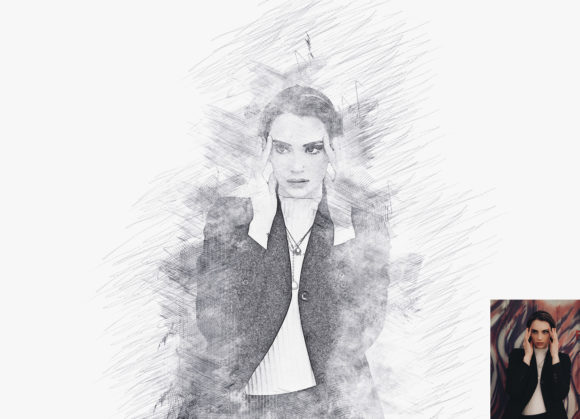
A Photoshop Action is essentially a recorded sequence of steps—such as menu commands, panel options, and tool actions—that can be played back on a single file or a batch of files. The Realistic Sketch Photoshop Action is a specialized set of these recorded steps designed specifically to mimic the texture, shading, and line work of a traditional pencil or charcoal sketch.
Unlike simple filters that often result in flat or unnatural looks, this action utilizes complex layer structures and blending modes to create depth. When you apply this action, it does not just overlay a texture; it analyzes the light and shadow of your image to generate a well-organized and structured file. The result is a multi-layered document where every element of the sketch can be tweaked, adjusted, and perfected.
The Significance of Efficiency in Creative Work
Time is one of the most critical resources in any creative industry. Manually creating a realistic sketch from a photo can take hours of meticulous brushwork, layer masking, and tonal adjustment. By using a pre-configured action, you reduce this process to mere minutes. This efficiency allows creators to focus more on the conceptual and compositional aspects of their work rather than getting bogged down in repetitive technical tasks.
For businesses, this means faster turnaround times for client deliverables. For educators and students, it provides a practical way to study the relationship between light, shadow, and form without needing advanced drawing skills immediately. The action acts as both a productivity booster and a learning aid.
Key Features and Compatibility
To truly appreciate the value of this tool, it is important to understand its technical specifications and features. The Realistic Sketch Photoshop Action is designed to be versatile and user-friendly, catering to a wide range of software versions and creative needs.
- Multiple Color Options: The set includes 10 different color options, allowing you to experiment with various moods and styles. From classic black-and-white graphite looks to sepia tones or colored pencil effects, the versatility ensures that the final output matches your artistic vision.
- Layer Organization: One of the standout features is the final file structure. After the action finishes, you are left with many layers, folders, and settings. This non-destructive workflow means you can go back and adjust opacity, blending modes, or specific details without starting over.
- Software Compatibility: Accessibility is key. This action supports a broad spectrum of Adobe Photoshop versions, including CS4, CS5, CS5.5, CS6, CC, CC2014, CC2015.5, CC2017, CC2018, CC2019, and CC2020. It is optimized for the English version of the software, ensuring that menu commands align correctly during playback.
Step-by-Step Guide to Using the Action
While the action automates much of the process, achieving the best results requires proper preparation. Many users make the mistake of applying actions to raw, unprepared images, leading to subpar outcomes. Follow these detailed instructions to ensure a professional finish.
1. Preparing Your Canvas and Image
The foundation of a good sketch lies in the resolution and composition of the source image. Before running the action, you must prepare your file correctly.
- Expand the Canvas Area: For optimal results, first expand your canvas area. Simply select your background image and use the Crop Tool to expand all sides slightly. This provides necessary breathing room for the sketch effects to blend naturally into the edges. For more details, always refer to the included PDF Help file.
- Resize and Resolution: Ensure your image is high quality. Resize your images to approximately 3000x2000px or 2000x3000px with a DPI of 300. High resolution ensures that the sketch lines remain crisp and detailed rather than pixelated or blurry.
2. Setting Up the Paint Layer
This step is crucial because the action relies on specific layer names to function correctly. Automation scripts in Photoshop often look for exact text strings to identify where to apply effects.
- Open your prepared photo in Photoshop.
- Create a new layer and rename it exactly as “paint” in lowercase letters. Case sensitivity matters here.
- Select a soft brush and lightly paint over the main subject of your image. This helps the action identify the focal point.
- Close the eye icon of the “paint” layer to hide it, but keep the layer selected.
- Click the play button on the Action panel to begin the process.
3. Interactive Adjustments During Playback
One of the most powerful aspects of this action is its interactive nature. It does not just run blindly; it pauses to ask for your input, ensuring the sketch reflects your artistic intent.
When you play this action, you will encounter a stop message. At this stage, you are instructed to:
- Set the foreground color to 000000 (pure black).
- Choose the Brush Tool (B).
- Pick some of the brushes that have already been loaded by the action.
- Brush mostly over the subject of your photo. This manual input tells the algorithm where to concentrate the darkest shadows and finest details.
After completing this step, click play again to let the action finish its work. The result is a nuanced sketch that highlights the subject while maintaining a natural, hand-drawn feel.
Common Misunderstandings and Tips for Success
A common assumption is that Photoshop actions are "one-click" solutions that require no skill. While they automate technical steps, they still require an eye for detail. For instance, if the source photo has poor lighting or low contrast, the resulting sketch may look muddy. It is essential to start with a well-lit, high-contrast image for the best transformation.
Another misconception is that the output is final and unchangeable. In reality, the well-organized file structure provided by this action invites further customization. You can adjust the opacity of the sketch layers, change the background color, or add additional textures to create a mixed-media effect. The action is a starting point, not the end of the creative journey.
Practical Applications in Modern Creativity
The utility of the Realistic Sketch Photoshop Action extends beyond personal art projects. In modern business and marketing, this style is increasingly popular for:
Brand Storytelling: Companies use sketch-style imagery to convey authenticity, craftsmanship, and a human touch. It feels less corporate and more approachable.
Educational Materials: Textbooks and online courses often use sketch effects to highlight diagrams or historical figures, making the content visually engaging without distracting from the information.
Social Media Content: In a feed saturated with polished, high-gloss photos, a realistic sketch stands out. It captures attention and encourages engagement due to its unique aesthetic appeal.
Conclusion
The Realistic Sketch Photoshop Action is more than just a filter; it is a sophisticated tool that combines automation with artistic control. By understanding its requirements—such as canvas expansion, proper layer naming, and interactive brushing—you can unlock its full potential. Whether you are using Photoshop CC2020 or an older version like CS6, this action offers a reliable way to transform ordinary photos into extraordinary art. Embrace the blend of technology and creativity, and let your images tell a deeper, more artistic story.