Transforming Photos with the Vector Mixed Art Photoshop Action: A Practical Guide
Digital artists and graphic designers are constantly seeking efficient workflows that bridge the gap between photographic realism and stylized illustration. The Vector Mixed Art Photoshop Action emerges as a specialized tool designed to automate this complex transformation, turning ordinary photographs into striking, vector-style artwork. For professionals and enthusiasts alike, understanding how this specific action functions, its compatibility, and its place within the broader ecosystem of digital art tools is essential for making an informed decision about integrating it into your creative process.
Understanding the Core Functionality
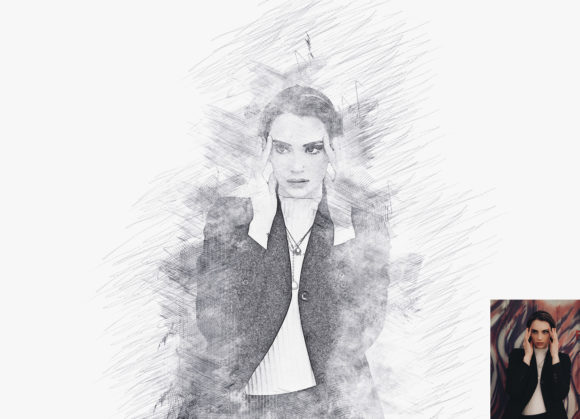
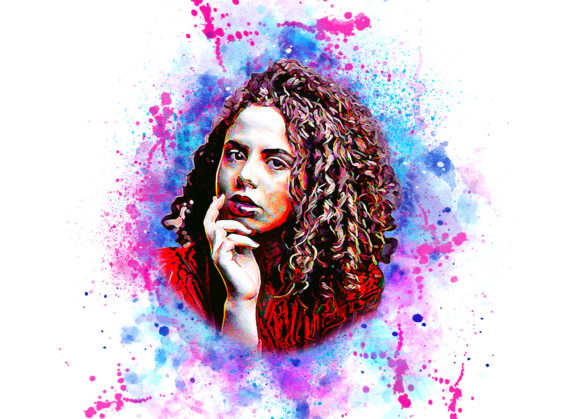
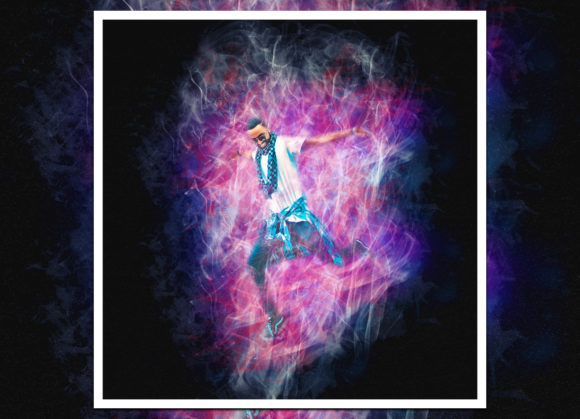
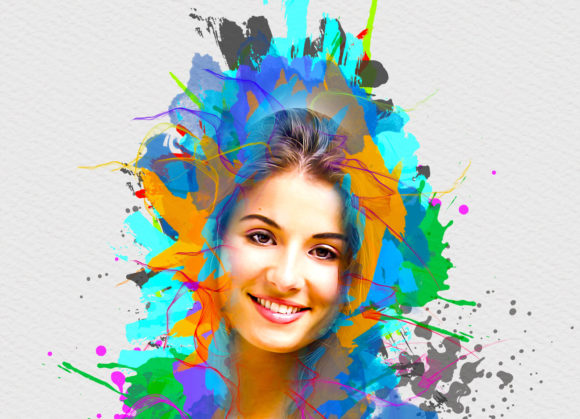
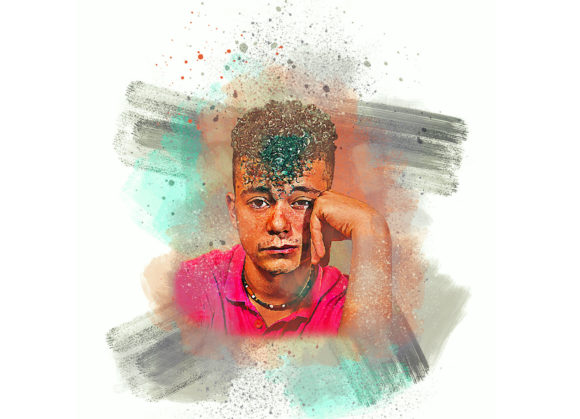
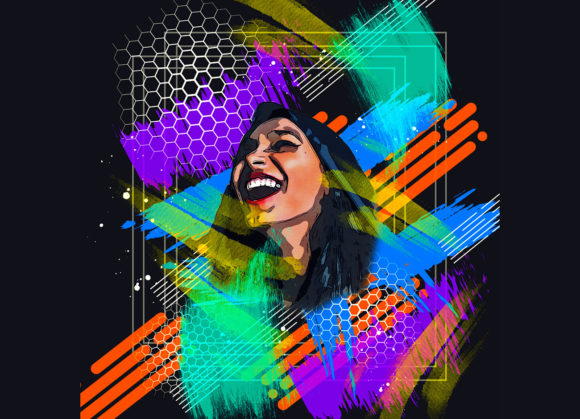
At its heart, the Vector Mixed Art Photoshop Action is a pre-recorded set of commands within Adobe Photoshop. Unlike manual editing, which requires hours of layer manipulation, masking, and filter application, this action automates the process. It is engineered to give photos a "real Vector Mixed Art look," blending sharp geometric lines with textured brushwork. This hybrid aesthetic is particularly popular in modern poster design, album covers, and social media content where high visual impact is required.
The non-destructive nature of this tool is one of its most significant advantages. Because the action utilizes adjustment layers, smart objects, and layer masks rather than permanently altering pixel data, users retain full control over the final output. You can tweak opacity, blend modes, and color balances long after the action has finished running. This flexibility is crucial for professional workflows where client revisions are common.
Workflow and Customization Options
While automation suggests simplicity, achieving optimal results with the Vector Mixed Art Photoshop Action requires adherence to specific preparatory steps. The tool is not a "one-click" solution for every image type; it demands a structured approach to ensure the algorithm interprets the photo correctly.
First, canvas preparation is vital. For the best outcome, users must extract the subject from the background or extend the canvas area. A recommended practice involves using the crop tool to expand the image boundaries on two sides or all sides, ensuring there is sufficient negative space for the vector elements to breathe. Resizing the image to a standard dimension, such as 2000x2000 pixels at 72 DPI, helps maintain consistency in how the brushes and effects are applied.
Secondly, the action relies on user input to define the artistic direction. Before playing the action, you must create a new layer named “paint” (in lowercase). Using a brush, you paint over the areas of the photo you wish to emphasize or stylize. This step acts as a guide for the action, telling the software where to apply the heavy vector effects and where to preserve photographic detail. Once this layer is hidden but selected, clicking the play button initiates the transformation.
Customization extends beyond the initial setup. The package includes ten different color options, allowing users to shift the mood of the artwork instantly. Whether you need a monochromatic scheme for a corporate look or vibrant, contrasting hues for a pop-art style, these presets can be applied with ease. This variety ensures that the same base photo can yield multiple distinct outputs, maximizing the utility of the tool.
Compatibility and Technical Requirements
Before investing time in learning any new digital asset, verifying software compatibility is a critical step. The Vector Mixed Art Photoshop Action has been rigorously tested to ensure stability across a wide range of Adobe Photoshop versions. It is fully compatible with the English versions of CS5.5, CS6, CC2014, CC2015, CC2015.5, CC2016, CC2017, CC2018, CC2019, and CC2020.
It is important to note that the action is designed specifically for English versions of the software. Users operating Photoshop in other languages may encounter errors due to differences in layer naming conventions and menu structures. Therefore, ensuring your software language setting matches the action’s requirements is a prerequisite for smooth operation. This limitation is common among third-party actions and highlights the importance of checking technical specifications before purchase or download.
Comparing Automated Actions vs. Manual Techniques
When evaluating the Vector Mixed Art Photoshop Action, it is helpful to compare it against manual creation methods and other automated alternatives. Manual vectorization in programs like Adobe Illustrator offers the highest degree of precision but comes with a steep learning curve and significant time investment. For a designer who needs to produce ten variations of a portrait in a single day, manual tracing is often impractical.
Conversely, generic filter apps and mobile-based AI tools offer speed but often lack the nuanced control required for professional print work. These apps typically apply a flat overlay without respecting the depth and lighting of the original photograph. The Vector Mixed Art Photoshop Action sits in the middle ground. It provides the speed of automation while retaining the layer structure and resolution quality necessary for high-end output. It allows for organized layers, meaning you can isolate specific elements—such as the background texture or the foreground outlines—and adjust them independently.
Ideal Use Cases and Limitations
This tool is best suited for specific types of imagery. Portraits with clear facial features, high-contrast lighting, and distinct backgrounds tend to yield the most impressive results. The action excels when the "paint" layer is used strategically to highlight eyes, hair, and clothing textures. It is less effective for low-resolution images, heavily blurred photos, or scenes with chaotic, indistinct details, as the algorithm may struggle to define clean vector paths.
Additionally, while the action includes brushes and help files, users should expect a learning curve regarding the preparation phase. The requirement to manually paint the guide layer means that the quality of the output is directly proportional to the care taken in this step. It is not a magic button that fixes poor source material; rather, it is an amplifier of good photographic foundations.
Making the Right Choice for Your Workflow
Deciding whether to incorporate the Vector Mixed Art Photoshop Action into your toolkit depends on your volume of work and stylistic needs. If you frequently create stylized portraits for commercial clients, social media campaigns, or personal projects, this action can reduce production time by up to 80%. The inclusion of PDF help files and user guides further supports beginners, making it accessible even to those with intermediate Photoshop skills.
However, if your work requires absolute geometric precision or if you primarily work with non-English versions of Photoshop, you may need to explore alternative solutions or invest in manual vector training. For most digital artists looking to expand their stylistic repertoire without sacrificing quality, this action offers a balanced, professional, and customizable solution. By understanding its requirements and leveraging its non-destructive workflow, you can transform ordinary photos into extraordinary visual statements efficiently.