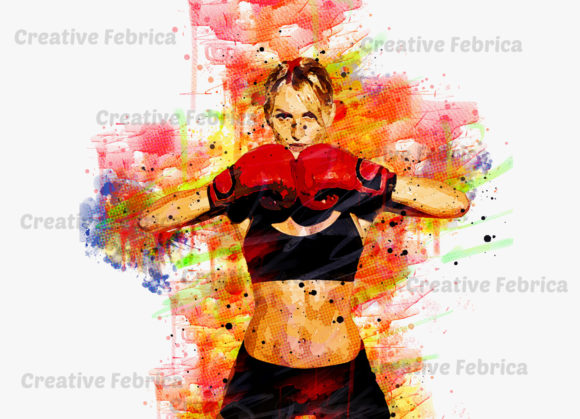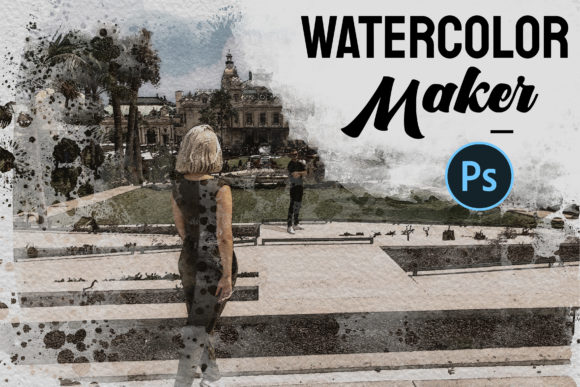
Watercolor Maker with Photoshop Layers: The Smart Workflow for Instant Artistic Effects
In the fast-paced world of digital content creation, the demand for visually striking imagery has never been higher. Whether you are a social media manager, a freelance photographer, or a small business owner, your audience expects aesthetics that stand out. However, achieving a hand-painted watercolor look traditionally requires significant artistic skill or hours of meticulous editing in complex software. This is where Watercolor Maker with Photoshop Layers changes the game. It bridges the gap between professional-grade artistic effects and the need for speed, offering a solution that requires no actions, no custom brushes, and absolutely no advanced Photoshop skills.
The modern creative workflow is defined by efficiency. We are moving away from labor-intensive manual processes toward smart, non-destructive editing tools that allow creators to focus on composition and messaging rather than technical execution. This tool fits perfectly into that evolution, providing a streamlined method to transform standard photographs into soft, painterly masterpieces in seconds.
Why Traditional Methods Are Becoming Obsolete
For years, achieving a watercolor effect in Adobe Photoshop involved a steep learning curve. Designers had to master specific brush dynamics, understand blending modes deeply, and often rely on third-party "actions" that could be unpredictable. These actions frequently broke when software updates occurred or failed to adapt to different image resolutions, leading to frustration and wasted time.
Furthermore, learning to draw or paint digitally is a lifelong pursuit. Most professionals do not have the luxury of spending months mastering digital illustration just to add a stylistic touch to a marketing campaign or a personal project. The friction between wanting a beautiful result and lacking the time or skill to create it manually has created a market gap. Watercolor Maker with Photoshop Layers addresses this by removing the technical barriers entirely. It does not rely on automated scripts that guess your intent; instead, it uses a structured, layer-based approach that gives you control without the complexity.
How the Smart Object Workflow Simplifies Creation
The core innovation of this tool lies in its use of Photoshop’s Smart Objects. For those unfamiliar with the term, a Smart Object is a container that holds image data from raster or vector images, such as Photoshop or Illustrator files. This feature preserves an image’s source content with all its original characteristics, enabling you to perform non-destructive editing on the layer.
Using this system is remarkably straightforward. The process eliminates the guesswork associated with traditional filters. Here is how the workflow typically unfolds:
- Open the PSD File: You start with a ready-to-use Photoshop file that is pre-configured with all necessary layers and adjustments.
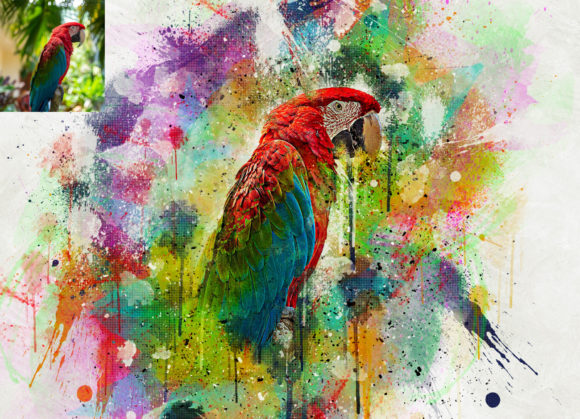
- Place Your Photo: Simply double-click the Smart Object layer. This opens a separate window where you place or paste your desired photograph.
- Save and Close: Once you save the Smart Object file, the main document automatically updates. The complex algorithms embedded in the layer structure instantly apply the watercolor texture and color blending to your image.
This method ensures that your original photo remains untouched and editable. If you decide later that you want to swap the image or adjust the positioning, you simply reopen the Smart Object, make your changes, and save again. There is no need to undo twenty steps or start over from scratch. This non-destructive nature is crucial for professionals who need to iterate quickly based on client feedback.
Key Features That Enhance Usability
What sets this tool apart from generic filters is its thoughtful organization and flexibility. It is designed for users who value clarity and customization. Below are the primary features that make it an essential addition to your digital toolkit:
- No Photoshop Actions Needed: Unlike action-based tools that run a script and leave you with a flattened, hard-to-edit result, this tool uses static layers. This means greater stability and compatibility across different versions of Photoshop.
- No Custom Brushes Required: You do not need to install, manage, or learn how to use specialized brush sets. The texture and effect are generated through layer styles and blending modes, ensuring consistency every time.
- Organized Layer Structure: The file is meticulously organized. Layers are grouped logically, allowing you to toggle specific elements on or off. Want more texture? Adjust the opacity of the texture layer. Want stronger colors? Modify the adjustment layers. The control is in your hands.
- Very Easy to Customize: While the default settings produce a beautiful result out of the box, the tool is built for adaptation. You can tweak color balances, contrast, and texture intensity to match your brand guidelines or artistic vision.
- No Photoshop Skill Needed: This is perhaps the most significant benefit. You do not need to understand histogram equalization, channel mixing, or complex masking. If you can open a file and save it, you can use this tool.
It is important to note that while the tool is powerful, preview images are typically not included in the download package to keep file sizes manageable and to respect licensing. Users are encouraged to test the tool with their own high-quality images to see the full potential of the effect.
Practical Applications for Modern Creators
The versatility of Watercolor Maker with Photoshop Layers makes it relevant across various industries and use cases. Its ability to soften harsh digital lines and add organic warmth is particularly valuable in contexts where authenticity and emotion are key.
For Marketers and Bloggers: In a feed saturated with hyper-realistic, high-contrast photos, a watercolor-style image can stop the scroll. It conveys a sense of calm, creativity, and approachability. Use it for blog headers, email newsletter backgrounds, or social media posts that aim to inspire rather than just inform.
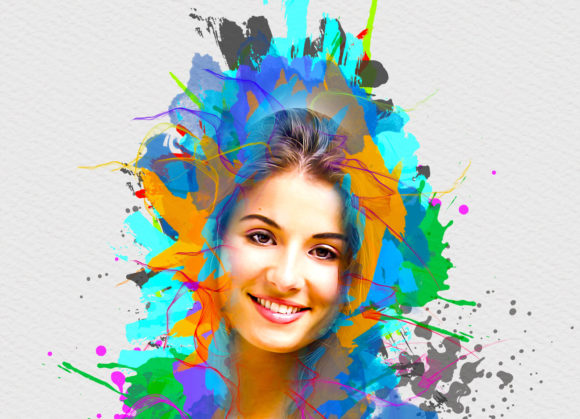
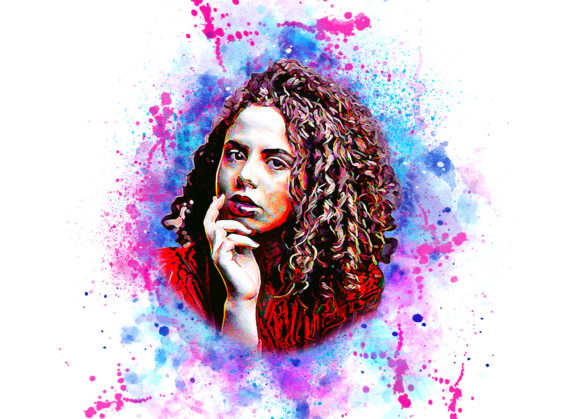
For Photographers: Portrait photographers can use this effect to create artistic prints for clients who want something unique. It transforms a standard headshot into a piece of wall art, adding value to your service offerings without requiring you to learn painting techniques.
For Educators and Presenters: Visual aids in presentations often benefit from a softer aesthetic that reduces cognitive load. Watercolor effects can make diagrams, maps, or background images less distracting and more harmonious with text overlays.
For E-commerce Brands: Products that relate to wellness, organic goods, or handmade crafts pair exceptionally well with watercolor textures. It reinforces the brand narrative of naturalness and care. You can quickly generate multiple variations of product shots for A/B testing without hiring a graphic designer for each iteration.
Adapting to the Shift Toward Efficient Creativity
We are witnessing a broader shift in how creative work is valued. Clients and audiences alike are less impressed by how long something took to make and more interested in the emotional impact and relevance of the final output. Tools that democratize high-end effects are not "cheating"; they are enabling more people to communicate visually.
By removing the technical hurdles of creating watercolor effects, this tool allows creators to focus on storytelling. It aligns with the trend of "smart creativity," where technology handles the repetitive, technical heavy lifting, freeing up human intellect for strategy and concept development. As software becomes more intuitive, the barrier to entry for high-quality design continues to lower, empowering entrepreneurs and hobbyists to compete with established agencies.
Making the Most of Your Watercolor Effect
To get the best results from Watercolor Maker with Photoshop Layers, consider the source material. Images with good contrast and clear subjects tend to translate best into watercolor styles. Highly cluttered or low-resolution images may lose detail when the softening effect is applied. Experiment with different types of photography—landscapes, portraits, and still life—to see how the texture interacts with various subjects.
Additionally, do not be afraid to combine this effect with other simple adjustments. Adding a subtle vignette or adjusting the white balance after applying the watercolor effect can further customize the mood. Because the layers are organized and non-destructive, you have the freedom to experiment without risk.
In conclusion, this tool represents a practical, efficient solution for anyone needing to elevate their visual content. It respects your time, accommodates your skill level, and delivers professional results. By integrating Watercolor Maker with Photoshop Layers into your workflow, you unlock a new dimension of creative expression without the traditional costs of time and training. It is a testament to how modern digital tools can empower us to create beauty, simply and effectively.