Mastering the Art of Digital Fire: A Guide to the Burning Effect Photoshop Action
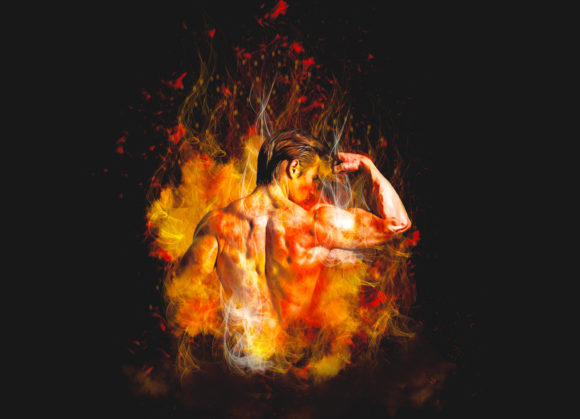
In the realm of digital photography and graphic design, the ability to manipulate reality is not just a technical skill but an artistic necessity. Among the myriad of visual effects available to creators, fire remains one of the most captivating and challenging elements to replicate authentically. While manual painting of flames requires advanced illustration skills and hours of labor, modern tools have democratized this process. The Burning Effect Photoshop Action stands out as a specialized tool designed to transform ordinary photographs into extraordinary images featuring realistic combustion. This technology allows photographers, designers, and hobbyists to integrate high-quality fire effects seamlessly, ensuring that the final output maintains professional standards without the steep learning curve associated with manual digital painting.
The Mechanics of Non-Destructive Editing
One of the primary advantages of using a dedicated action pack like the Burning Effect Photoshop Action is its non-destructive nature. In professional workflows, preserving the original image data is paramount. Unlike filters that permanently alter pixel information, this action utilizes adjustment layers, masks, and smart objects. This approach ensures that every element of the burning effect can be tweaked, hidden, or removed entirely after the action has been applied. For educators and researchers demonstrating digital manipulation techniques, this feature provides a transparent view of how complex effects are constructed layer by layer.
The action is engineered to work within the English versions of Adobe Photoshop, specifically tested for reliability across a wide range of software iterations. From CS5.5 and CS6 to the more recent CC2014 through CC2020 versions, the compatibility is broad. This extensive support means that users do not need to upgrade their hardware or software solely to access this specific visual capability. Whether you are a business owner creating marketing materials on an older workstation or a creator using the latest Creative Cloud suite, the tool adapts to your existing environment.
Preparation and Canvas Optimization
Achieving a high-quality result begins long before the action button is pressed. The foundation of any successful digital composite lies in proper preparation. The instructions for the Burning Effect Photoshop Action emphasize a critical first step: extracting and expanding the canvas area. Fire is a dynamic element that often extends beyond the boundaries of the original subject. If the canvas is too tight, the flames will appear cut off, breaking the illusion of realism.
To mitigate this, users are advised to select their background image and utilize the crop tool to extend the workspace. Extending the canvas on two sides or all sides provides the necessary negative space for the fire to breathe and expand naturally. Furthermore, resolution plays a pivotal role in the final output. The recommended specification is an image size of 3000x3000 pixels at 72 DPI. This resolution strikes a balance between file manageability and visual clarity, ensuring that the textures of the flames remain sharp without causing unnecessary strain on system resources during processing.
The Workflow: From Selection to Ignition
The core functionality of the action revolves around a simple yet precise workflow that guides the user through the creation process. Understanding this sequence is essential for anyone looking to integrate this tool into their regular routine. The process begins with the creation of a new layer, which must be named “paint” in lowercase letters. This naming convention is not arbitrary; the action script is programmed to recognize this specific layer name to determine where the fire should originate.
Once the layer is created and renamed, the user selects a brush tool to paint over the areas of the image intended to burn. This step allows for complete creative control. You might choose to set fire to the edges of a portrait, engulf a product in flames for a dramatic advertisement, or create a subtle smoldering effect on a landscape. After painting the desired areas, the visibility of the “paint” layer is turned off. This hides the rough brush strokes while keeping the selection active. With the layer still selected, the user simply clicks the play button on the action panel. The software then processes the input, generating complex layers of fire, smoke, embers, and lighting adjustments automatically.
Customization and Creative Control
While automation saves time, customization ensures uniqueness. The Burning Effect Photoshop Action is designed to be easy to customize, allowing users to fine-tune the result to match their specific artistic vision. Because the effect is built using organized layers, users can adjust the opacity, blending modes, and color balance of individual components. For instance, if the flames appear too intense, the opacity of the fire layer can be reduced. If the smoke needs to be denser, the corresponding mask can be edited.
The package includes additional resources such as custom brushes and help files, including a PDF guide. These assets are invaluable for users who wish to refine the initial output. The included brushes can be used to add extra detail or correct areas where the automatic generation might not have perfectly aligned with the subject’s contours. This level of flexibility makes the tool suitable for a broad audience, from hobbyists experimenting with surreal art to professionals delivering client-ready commercials.
Applications Across Industries
The versatility of the Burning Effect Photoshop Action opens up numerous applications across various sectors. In the entertainment industry, concept artists can use it to quickly visualize scenes involving destruction or magical elements. For marketers, adding a burning effect to a product image can convey messages of heat, spice, urgency, or transformation. A beverage company might use it to suggest the intense flavor of a spicy drink, while a fitness brand could use it to symbolize burning calories or intense energy.
Educators and researchers in digital media studies can also benefit from this tool. It serves as an excellent case study for understanding how automated scripts interact with layer structures and masking techniques. By deconstructing the action, students can learn about the logic behind digital compositing, gaining insights that are applicable to other areas of graphic design and visual effects.
Technical Considerations and Support
While the tool is designed for ease of use, technical considerations must be acknowledged. The action relies on the specific architecture of Photoshop’s English version. Users operating non-English interfaces may encounter errors due to mismatched layer names or menu commands. Therefore, ensuring that the software language is set to English is a crucial prerequisite. Additionally, the performance of the action depends on the computer’s processing power. Generating high-resolution fire effects involves complex calculations, so a system with adequate RAM and a capable processor will yield faster results.
Support is another critical aspect of the user experience. The inclusion of 24-hour support indicates a commitment to user success. Whether a user faces installation issues or seeks advice on achieving a specific look, accessible assistance ensures that the learning curve remains manageable. The provided help files and user guides further reduce friction, offering step-by-step instructions that complement the automated process.
Enhancing Visual Storytelling
Ultimately, the value of the Burning Effect Photoshop Action lies in its ability to enhance visual storytelling. Fire is a powerful symbol, representing danger, passion, renewal, and energy. By integrating this element seamlessly into photographs, creators can evoke strong emotional responses from their audience. The realistic texture and lighting provided by the action ensure that the effect does not look like a cheap overlay but rather an integral part of the scene.
For creators aiming to stand out in a saturated digital landscape, tools that offer high-quality results with efficiency are indispensable. This action bridges the gap between technical complexity and creative expression, allowing users to focus on the narrative rather than the mechanics of flame simulation. Whether used for personal projects, commercial campaigns, or educational purposes, it provides a reliable and professional solution for adding the dramatic impact of fire to digital imagery.
By following the prescribed steps—preparing the canvas, naming the paint layer correctly, and leveraging the non-destructive layers generated by the action—users can consistently achieve stunning results. The combination of ease of use, broad software compatibility, and high-quality output makes this tool a valuable asset in any digital artist’s toolkit. As visual content continues to dominate communication channels, the ability to quickly and effectively create compelling, fiery imagery will remain a sought-after skill, facilitated by intelligent tools like this Photoshop action.