Soft Watercolor Photoshop Action Guide
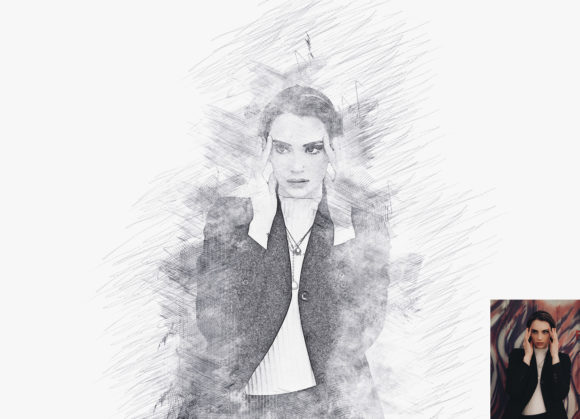
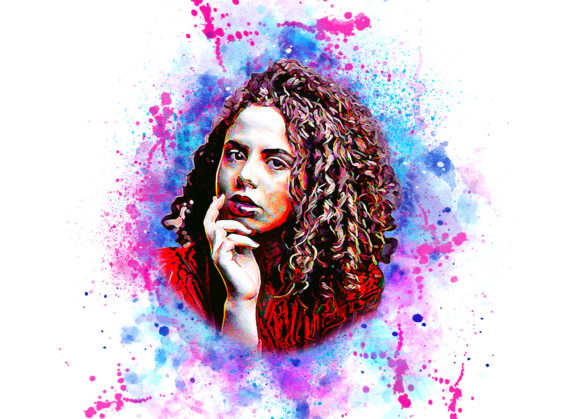
Transforming a standard digital photograph into a piece of art that mimics the delicate, fluid beauty of hand-painted watercolors used to require hours of manual brushwork and advanced artistic skill. Today, tools like the Soft Watercolor Photoshop Action have democratized this aesthetic, allowing photographers, designers, and hobbyists to achieve professional-grade results in minutes. This specialized tool is designed to bridge the gap between photography and traditional painting, turning ordinary snapshots into extraordinary visual statements without the steep learning curve associated with manual digital painting.
Understanding the Appeal of Digital Watercolor
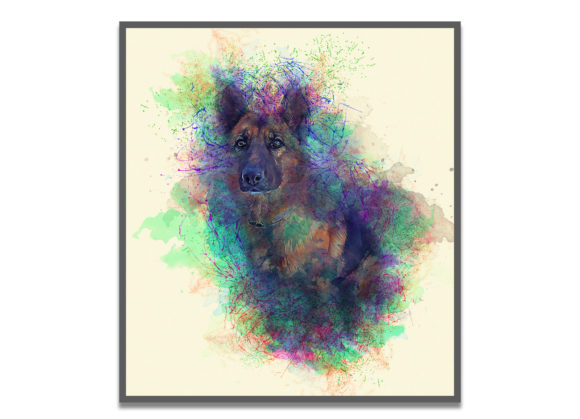
The charm of watercolor lies in its unpredictability and softness. Unlike oil or acrylics, watercolors bleed, blend, and create organic textures that are difficult to replicate digitally. The primary value of using a dedicated action pack is its ability to simulate these complex interactions automatically. By leveraging pre-configured settings, users can apply a non-destructive effect that preserves the original image data while overlaying realistic painterly textures.
This approach is particularly appealing because it is easy to customize. Whether you are a small business owner looking to create unique social media graphics, a blogger wanting distinctive header images, or a professional photographer offering diverse editing styles to clients, this tool provides a consistent yet flexible solution. The result is high-quality output that feels authentic rather than like a cheap filter, adding a layer of sophistication to your visual content.
Compatibility and Technical Requirements
Before diving into the creative process, it is essential to ensure your software environment is compatible. This specific professional pack has been tested and optimized for a wide range of Adobe Photoshop versions. It supports legacy systems including CS4, CS5, CS5.5, and CS6, as well as modern Creative Cloud iterations such as CC, CC2014, CC2015.5, CC2017, CC2018, CC2019, and CC2020. The developer notes that their working version is CC2020 English Version, ensuring stability and performance on recent updates.
The package is comprehensive, including not just the ATN file (the Photoshop Action itself), but also essential assets like Brush Files and Pattern Files. These additional resources are crucial for achieving the nuanced look that defines high-end digital watercolor art. Furthermore, the inclusion of both a standard Help File and a PDF Help File ensures that users of all skill levels can troubleshoot issues and understand the workflow without feeling overwhelmed.
Step-by-Step Workflow for Best Results
While the promise of "one-click" solutions is tempting, achieving the best results with the Soft Watercolor Photoshop Action requires following a specific, logical sequence. The action is interactive, meaning it pauses at critical moments to allow user input. This interactivity is what allows for customization and prevents the final image from looking generic.
- Preparation: Begin by opening your chosen photo in Photoshop. Create a new layer and rename it “paint” in lowercase letters. This naming convention is vital; the action is programmed to look for this specific layer name to function correctly.
- Initial Painting: Select a soft brush and lightly paint over the areas of the image you wish to transform. This step tells the action where to focus its effects. Once you are satisfied with the coverage, close the eye icon for the “paint” layer to hide it, but keep the layer selected.
- Executing the Action: Click the play button to start the action. You will encounter a stop message that reads: “Now Set the foreground color to ffffff, choose the Brush Tool B, pick some of the soft watercolor brushes that you have already loaded, and brush mostly over the subject area.”
- Interactive Refinement: Follow the instruction precisely. Set your foreground color to white (hex code #ffffff). Choose from the included watercolor brushes—such as swb 04, 05, 11, 13, 14, and 15—and brush over the main subject of your photo. This step adds depth and highlights. Once finished, click the action play button again to complete the process.
Adhering to these instructions ensures that the organized layers remain intact, allowing for further adjustments if needed. The non-destructive nature of the effect means you can always go back and tweak opacity or blending modes if the initial result is too strong or too subtle.
Practical Applications and Use Cases
The versatility of this tool extends across various industries and personal projects. For educators and trainers, converting historical photos or diagrams into watercolor styles can make educational materials more engaging and less sterile. Wedding photographers often use this technique to create romantic, dreamy albums that stand out from standard digital edits. Similarly, interior designers might use it to visualize how a space could look with an artistic touch, presenting concepts to clients in a softer, more inviting manner.
In the realm of digital marketing, unique visuals capture attention. A blogger covering lifestyle topics can use these actions to create featured images that convey warmth and creativity, distinguishing their brand from competitors who rely on stock photography. Freelancers can offer this as a premium add-on service, increasing their revenue streams by providing clients with multiple artistic variations of their product shots or portraits.
Important Considerations for Users
While the Soft Watercolor Photoshop Action is powerful, it is not a magic wand that fixes poor source material. High-quality results depend heavily on the input image. Photos with good lighting, clear subjects, and reasonable contrast tend to yield the best transformations. Images that are overly dark, noisy, or lacking in definition may produce muddy or unclear watercolor effects.
Additionally, users should take time to experiment with the included brushes. The stop message instruction emphasizes using specific brushes like swb 04 or 15, but feeling free to mix and match can lead to unique stylistic signatures. Understanding that the action works on every photo does not mean every photo will look identical; the outcome is a collaboration between the algorithm and your manual brushing input.
Finally, keep in mind that this is an English Version tool. While the visual interface of Photoshop is universal, the help files and specific error messages or prompts will be in English. Ensuring your Photoshop language settings align with the action’s design can prevent confusion during the interactive steps. By respecting the workflow and leveraging the included resources, you can consistently turn ordinary images into extraordinary works of art.